


Account and Login
Password
 Your initial password is automatically generated using your 7-digit ID number (including the leading "0") and your birthdate (MMDDYY). For example: #######MMDDYY.
To enhance security, please change your initial password as soon as possible, by going to www.svsu.edu, selecting Quicklinks, then Change Network Password. This Knowledge Article walks you through the steps.
Username
Your username can be found in your initial admissions packet. If you are a newly admitted student and have questions about your username, please contact the SVSU Office of Admissions.
Authentication & Recovery Tools
All registered students are required to set up Multi-Factor Authentication (MFA) to help keep their SVSU accounts secure.
We also recommend setting up Self-Service Password Reset (SSPR), a convenient tool that works with MFA and lets you reset your password anytime, without contacting IT Support.
- You’ll continue to see an SSPR setup prompt each time you sign in to Microsoft 365 until you've added at least two verification methods.
- Choose your preferred MFA authentication method (we recommend using the Microsoft Authenticator app).
- Be sure to enter your phone number, even if you choose the app as your method.
- For detailed setup instructions, visit our support Knowledge Article.
- Each semester, verify your phone number at mfasecurity.svsu.edu to ensure your information is up to date.
mySVSU Portal
Welcome to the SVSU Portal: Your Gateway to Campus Resources
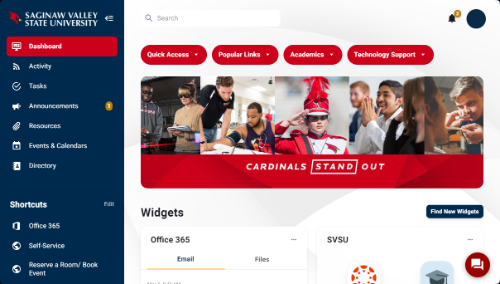 The SVSU Portal, accessible at my.svsu.edu, is your one-stop destination for managing your academic and campus life efficiently. Here's what you can do with just a few clicks:
- Stay Informed: View important SVSU notifications to keep up-to-date with the latest campus news.
- Manage Communications: Easily access your SVSU email and other essential systems.
- Academic Tools:
- Register for classes without hassle.
- View your class schedule and check your grades anytime.
- Campus Services:
- Submit maintenance requests quickly and easily.
- Browse the latest SVSU news and discover what’s happening around campus.
- Engage with Events: Find details about upcoming events and participate in campus community activities.
Get the most out of the SVSU Portal and transform how you manage your campus life. For quick tips and to explore all the highlighted features, visit our mySVSU Support Page.
Software

Access Your Software Anywhere
 You don’t always have to be on campus to access the tools required for your assignments. Many of the applications available in SVSU’s computer labs are also accessible from home.
Download Software for Home Use: Browse our list of software available for students to to install on personal devices. Learn more about software for home use.
Use the Virtual Computer Lab: Can't make it to campus? Or does your personal device not meet the software's requirements? No problem! SVSU's Virtual Computer Lab gives you full access to lab software right from your web browser. No installs needed
SVSU Supported Software
Prepare for Your Semester Software Needs: Start each semester on the right foot by reviewing your course syllabus. This helps you identify which software tools you'll need for your classes.
Commonly Used Software at SVSU: Many courses use the software listed on this page. Get familiar with these tools early to ensure a smooth academic experience.
Explore Software & Support: Search the software title in our Knowledge Base for installation and usage tips. Also, check out our Student Help for Online Tools and Software article for a quick overview of the platforms you'll use most.
Canvas
Canvas is SVSU’s chosen Learning Management System (LMS), designed to make your educational experience easier. Through Canvas, you can:

- Access Course Materials: All your study resources are in one place.
- Submit Assignments: Turn in your work through Canvas, including documents from OneDrive, here's how.
- Stay Updated: Keep track of class activities and announcements.
Get Started with Canvas
Ready to dive in to Canvas? Enroll in the Passport to Canvas. This self-paced training courses teaches you how to use the tools and navigate Canvas effectively.
How to Access Your Courses
You can log in three ways:
- Mobile App: Install the Canvas Student app on your phone or tablet.
- Through the mySVSU Portal: Sign in and then use the Academics capsule button or the Canvas widget.
- From the SVSU Homepage: Go to www.svsu.edu, click on Quicklinks, and select Canvas.
Respondus LockDown Browser and Monitor
- LockDown Browser is a secure application used to take Canvas quizzes and exams. It prevents you from printing, copying, going to another URL, or accessing other applications during a test.
- If your instructor requires it, you’ll need to download and install LockDown Browser from your Canvas course before taking the exam learn more at Respondus LockDown Browser and Monitor.
EchoVideo Lecture Capture
EchoVideo, is a video platform used in Canvas to share live and recorded lectures, presentations and interactive tools for in-person, hybrid, and online classes. Learn more.
If your teacher uses EchoVideo, you'll find it in the course navigation menu or embedded on course pages.
 Key Features for Students:
- Watch live or recorded lectures
- Take notes, ask questions, join discussions
- Mark confusing content and create bookmarks
- View slides & answer polls alongside videos
- Accessibility tools: playback speed, transcripts, captions, screen-reader options, and more
Microsoft 365
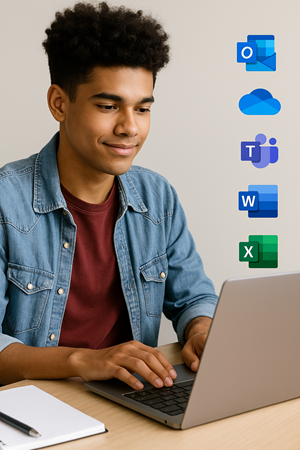 As an SVSU student, you get free access to Microsoft 365, including both online and desktop apps.
Use Microsoft 365 Online
In Computer Labs: Always use the online version. This automatically saves your files to OneDrive, safeguarding your work.
You can access Microsoft 365 in two ways:
- Through the mySVSU Portal: Log in, then use the Academics capsule button or the Office 365 widget.
- From SVSU’s Homepage: Visit www.svsu.edu, click 'Quicklinks', and select either 'OneDrive' or 'Outlook'. Use the waffle-shaped app launcher menu to access other apps like Word, Excel, and Teams.
Install Microsoft 365 on Your Devices
- You can install Microsoft 365 on up to five personal devices for free.
- View the Microsoft 365 Installation Guide to see how.
What's included in Microsoft 365?
If you're used to Google Classroom, don't worry, many Microsoft 365 apps have similar equivalents:
Outlook
Email and calendar app.
Google equivalent: Gmail
- Set up a professional signature on the web app and the mobile app.
- Learn to attach or link files (OneDrive to Outlook).
- Learn more about Outlook on the Web.
- Learn more about the Outlook mobile app.
OneDrive
Cloud storage for your files. Submit assignments within Canvas.
Google equivalent: Drive
- Always Save to OneDrive especially in campus computer labs. Learn more.
- App Desktop Versions: If you choose to use the desktop version of an Office app, remember to upload your file to OneDrive before logging out. Files saved locally on lab computers will be erased upon logout or restart.
Teams
Chat, video calls, and group collaboration. Learn more.
Google equivalent: Meet
Word
Document creation and formatting. Learn more.
Google equivalent: Docs
.png) Excel
Excel
Spreadsheets and data analysis. Learn more.
Google equivalent: Sheets
PowerPoint
Slides and visual presentations. Learn more.
Google equivalent: Slides
Stream
Record and share videos for class. Learn more.
Google equivalent: YouTube would be the closest
 Adobe Creative Cloud
Full Adobe Creative Cloud Access for Student Employees Student Employees at SVSU enjoy enhanced privileges, including access to the full Adobe Creative Cloud suite. This access is available only when logged in at student workstations on campus with an install request. Creative Cloud Includes, Photoshop, Illustrator, Adobe Acrobat and more!
SpectrumU
SpectrumU lets residential SVSU students stream live TV and on-demand content for free from their phones, tablets, or laptops. Learn how.
Internet & Printing
Network Connection Information
Available Wireless Networks
SVSUSecure
Best for SVSU devices, smartphones, and laptops (devices with a web browser application.)
 Requires your SVSU username and password.
 - Android Users - when connecting to SVSUSecure:
- Select PEAP, MS chap v.2, Don't Authenticate
- Enter username not full email address
SVSUMediaGaming
Best for gaming devices, Blu-ray players, televisions, Roku’s, Amazon Fire, Chromecast, etc.
- Please do NOT connect smartphones or laptops.
- NAT type for gaming online will always be Moderate or Strict, due to Microsoft, Sony, and Nintendo use on corporate networks.
SVSUGuest
Recommended for guests with no SVSU user account.
- Requires registration each day.
Wired Network in Housing
- Wired network ports and WiFi are set to the same speed.
- Wired network jacks are NOT ACTIVE by default. Please submit an IT Support Ticket to request an activation and provide the room and the network port information.
- Wired devices in Housing DO NOT need to be registered in Clearpass.
------------------------------
Non-SVSU owned devices will be treated with restricted access to non-essential internal resources.
Content filtering and network speed will remain unchanged on SVSUSecure.
Troubleshooting WiFi
If you're having trouble connecting to SVSUSecure or SVSUMediaGaming try these troubleshooting tips:
Basic Troubleshooting Steps:
- Check Device Settings:
- Make sure WiFi is turned on.
- Turn airplane mode off if it's enabled.
- Refresh Network List:
- Turn WiFi off and then back on. This is especially useful when moving between locations on campus.
- Forget and Reconnect:
- Go to your device’s WiFi settings and select "Forget wireless network."
- Reconnect by choosing the correct network and entering your SVSU credentials.
- If you've recently changed your password, this step is especially important.
Printing
 Web Print User Guide: Learn how to print securely from SVSU machines or personal devices
Manage Printing Account: Access web print.
- Open the SVSU home page
- Select Quicklinks, then Print Balance
Policies & FAQs: View the Print Policy and get answers to common questions
Security: Protecting Our Digital Campus
At SVSU, cybersecurity is a critical priority. Cybercriminals are constantly evolving their tactics, making it essential for universities to be vigilant. The SVSU ITS team is dedicated to enhancing our cybersecurity measures to protect the digital information of our entire campus community.
Every faculty member, staff, and student is vital in this effort. Cybersecurity is a collective responsibility that ensures the safety of all. We empower our community with ongoing education and robust security practices, providing the tools and knowledge necessary to maintain a secure digital environment. For detailed guidance on your specific role in this initiative, please explore our Information Security articles.
Phishing: Stay Alert and Informed
 Report Phishing Emails: Learn the steps to recognize and report phishing attempts to keep your information safe.
- Protect Yourself from Common Scams and Threats: Review this article in our Knowledge Base.
Passwords: Your First Line of Defense
- Create Strong Passwords: Always use strong, complex passwords and never share them.
- Manage Your Passwords: Change your password if you suspect it's been compromised. It’s crucial to use different passwords for different sites and never use your SVSU password elsewhere.
Report Problems and Ask Questions

- Submit an online request at mysupport.svsu.edu
- Email support@svsu.edu
- Call 989-964-4225
- Visit us at Zahnow Library First Floor